

32 Life-Changing Chrome Extensions I’m Never Uninstalling (2026)
I still remember the specific “Tab Panic” that led me to my first extension. I had about 40 tabs open, my laptop fan sounded like a jet engine, and I accidentally closed a research paper I’d spent three hours finding. I almost threw my mouse across the room.
That was five years ago. Since then, I’ve gone down the rabbit hole, testing hundreds of extensions—most of which were deleted within ten minutes. But 32 of them actually stuck. They’ve moved from “cool toys” to things I literally cannot work without. If I had to set up a new computer today, these are the first things I’d install before even opening my email.
Because let’s be honest: the modern web is kind of a mess.
We’ve all been there—your browser has so many tabs open they don’t even have icons anymore, just a row of anonymous gray slivers. You know you saved that one article, but now you’re digging through a ‘bookmarks’ folder that has become a graveyard of links you’ll never actually click.
It’s the constant, low-level friction that wears you down:
- The ‘Tab Tax’: That moment of panic when your browser freezes right before a deadline because you’re hoarding 50+ pages.
- The Memory Hole: Trying to remember which of your three emails you used for a login, only to be told ‘Incorrect Password’ for the fifth time.
- The Distraction Spiral: Opening a new tab to do something productive, only to realize twenty minutes later you’re halfway down a Wikipedia rabbit hole.
- The Visual Noise: Ads that jump in front of the text exactly when you start reading, or cookie banners that feel like they require a law degree to navigate.
I spent years fighting that friction with ‘willpower,’ but willpower doesn’t scale. These 30 most useful add-ons do. They’re the digital WD-40 for my workflow—they smooth out the edges of the internet so I can actually get things done.
Here is the “forever list Chrome extensions 2026” that actually survived the cut.
The Productivity Powerhouses That Changed My Workflow
1. Todoist: My Digital Brain for Task Management
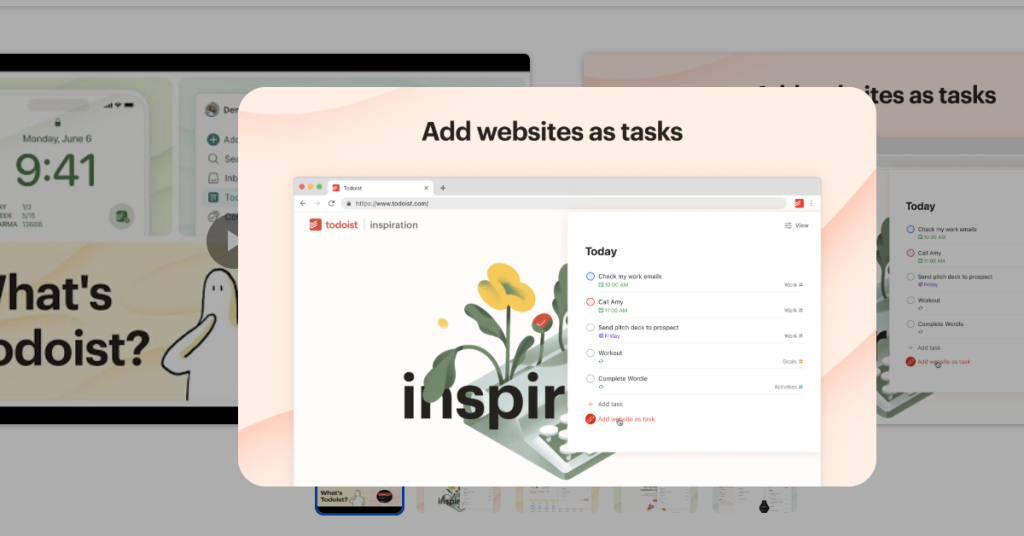
If you’ve ever told yourself “I’ll remember that later” and then completely forgotten about it five minutes later, you need Todoist. This Chrome add-on has become my external brain. I can add tasks from any webpage with a single click, organize them into projects, set due dates and reminders, and watch everything sync seamlessly across my laptop, phone, and tablet.
What makes Todoist special is how effortlessly it integrates into your browsing. See an interesting article? Right-click, add it as a task to read later. Get an email about a project deadline? Turn it into a task with one click. The extension captures the context of what you’re doing and makes it actionable.
The free version is surprisingly robust, but I upgraded to Premium for features like labels, filters, and reminders. Best decision I’ve made for my productivity.
2. Momentum: The New Tab Page That Actually Motivates You
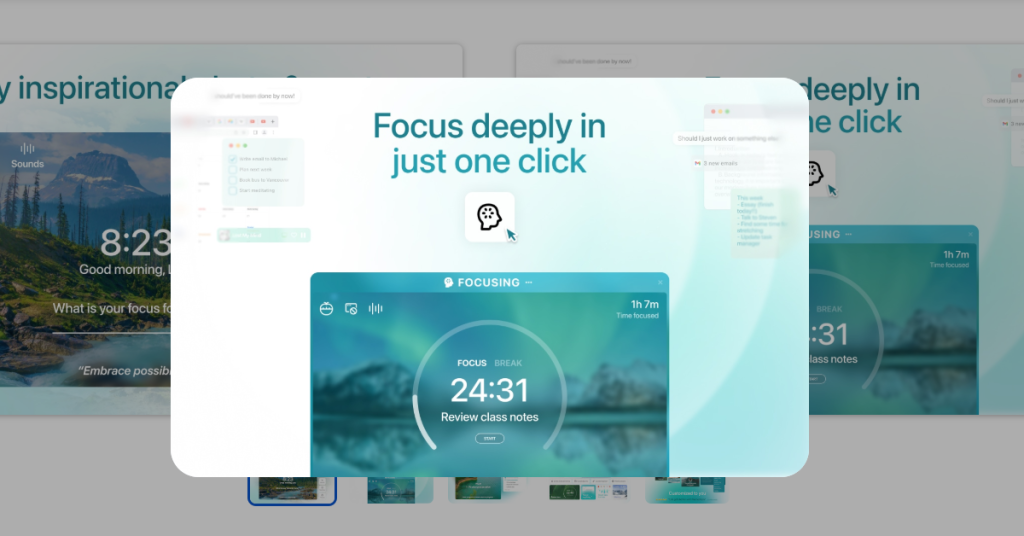
Every time I open a new tab, I’m greeted by a stunning landscape photo, the current time, and a simple question: “What is your main focus for today?”
Momentum transforms Chrome’s default new tab—which used to tempt me with frequently visited sites and news articles—into a personalized productivity dashboard. It displays my daily focus, a to-do list, inspirational quotes, weather updates, and shortcuts to my most-used apps.
The genius of Momentum is its simplicity. It doesn’t overwhelm you with widgets and notifications. Instead, it creates a moment of calm intention before you dive into your work. Every new tab becomes a gentle reminder of what you’re trying to accomplish today.
The free version includes the basics, while Momentum Plus unlocks integrations with Todoist, Asana, and other productivity apps. I’ve been using it for over two years, and it still brings me joy every single day.
3. Clockify: The Time Tracker That Finally Works
I used to wonder where my time went each day. Now I know exactly where it goes, thanks to Clockify.
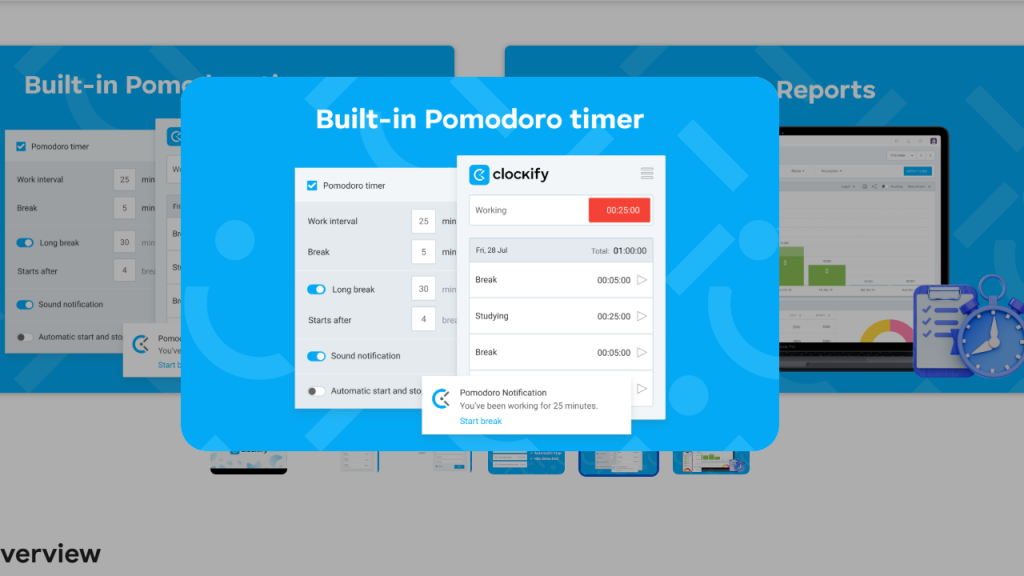
This free time-tracking extension integrates seamlessly with over 80 web tools including Trello, Asana, Jira, and Gmail. You can start a timer with a single click, tag time entries with projects and tasks, and even use the Pomodoro technique with built-in work/break intervals.
What I love most is how Clockify fades into the background until you need it. The timer button appears natively inside apps I already use, so tracking time doesn’t require switching contexts or breaking my flow. At the end of the week, I can run detailed reports showing exactly where my time went and identify productivity leaks.
For freelancers who bill by the hour, this extension is absolutely essential. But even if you don’t track time for clients, knowing where your hours actually go is eye-opening.
4. Grammarly: The Writing Assistant That Makes You Sound Smarter
I write every single day—emails, blog posts, social media updates, documentation, messages to colleagues. Before Grammarly, I’d send emails with embarrassing typos or write sentences that rambled on forever without making a point.
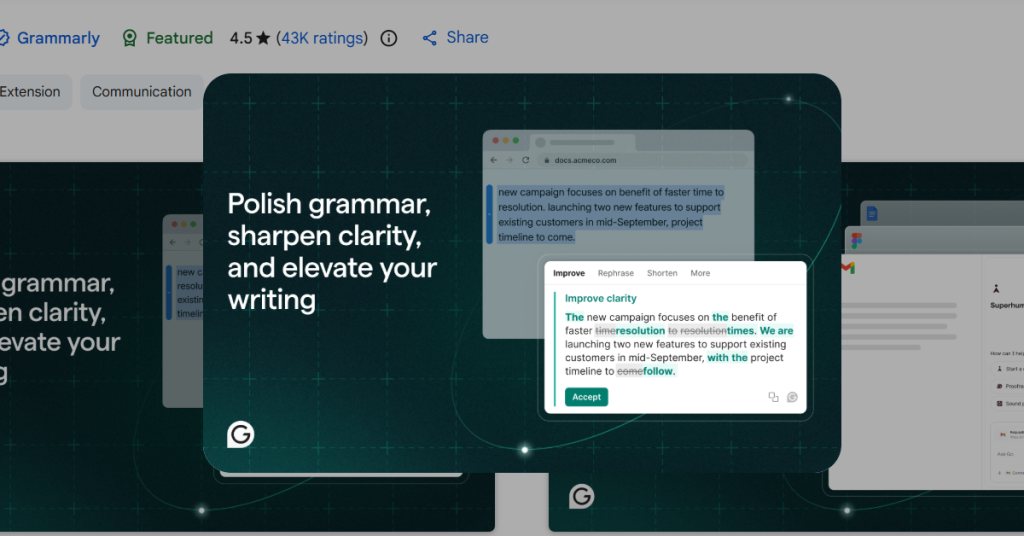
Grammarly changed that. As one of the most useful Chrome extensions, it works across Gmail, Google Docs, LinkedIn, Twitter, and over 500,000 other websites, checking your spelling and grammar in real-time. But it does so much more than catch typos. It suggests better word choices, identifies unclear sentences, detects your tone, and even checks for plagiarism in the premium version.
The free version catches most common mistakes and is more than sufficient for casual writing. I upgraded to Premium for the tone detector and advanced suggestions, which have genuinely improved my professional communication. There’s something confidence-boosting about knowing your writing is polished before you hit send.
5. Google Keep: Quick Notes That Actually Stay Organized
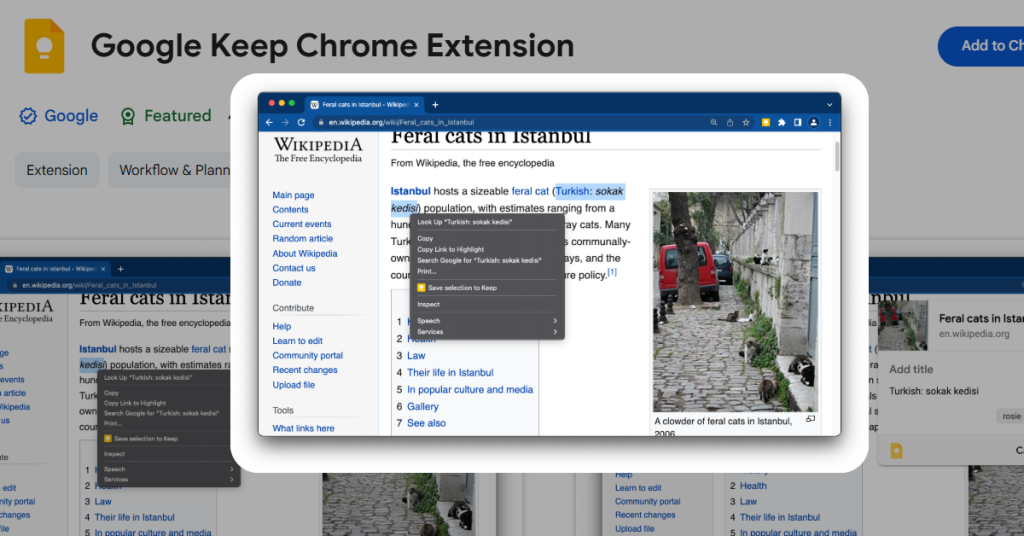
Sometimes you just need to jot something down quickly. Google Keep is my go-to for those moments.
The Chrome extension lets me save URLs, images, quotes, and quick thoughts with a single click. I can add labels to organize notes, set location-based reminders, and create checklists. Everything syncs instantly across my devices, so notes I capture on my computer are immediately available on my phone.
What makes Keep special is its simplicity. Unlike Evernote or Notion, which can feel overwhelming with features, Keep does exactly what I need without getting in the way. I use it for shopping lists, article ideas, travel planning, and those random thoughts that pop into my head at 2 AM.
The color-coding feature helps me visually organize different types of notes, and the ability to copy notes directly to Google Docs is perfect for turning quick ideas into full articles.
The Security Suite Chrome extensions That Protects My Digital Life
6. Bitwarden: The Password Manager That’s Actually Free
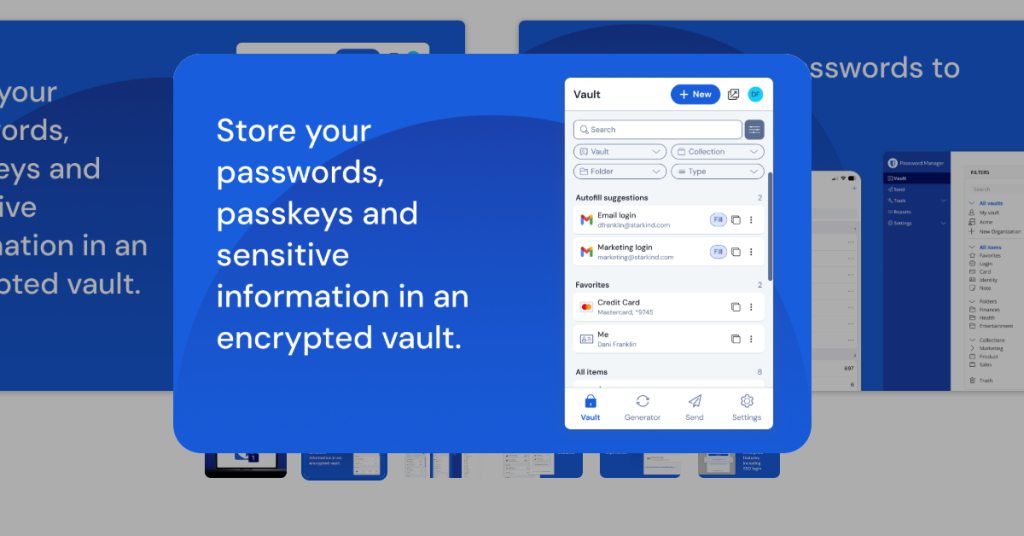
Let’s be honest: we all reuse passwords. We know it’s dangerous, but remembering unique passwords for 100+ accounts feels impossible.
Enter Bitwarden, the open-source password manager that’s completely free for unlimited devices. It generates strong, unique passwords for every account, auto-fills them when you need to log in, and syncs everything securely using zero-knowledge encryption.
What convinced me to switch from LastPass to Bitwarden was its transparency. Being open-source means security experts can audit the code, and the free tier doesn’t artificially limit important features. You get secure password storage, autofill, password generation, secure notes, and two-factor authentication without paying a cent.
The browser extension is beautifully designed and blazingly fast. It can also store credit card information, secure notes, and even personal identity details like passport numbers. I sleep better at night knowing all my accounts use unique, 20-character passwords that I don’t have to remember.
7. uBlock Origin: The Ad Blocker That Respects Your Privacy
If you’re still browsing the web without an ad blocker in 2026, you’re seeing a very different internet than I am—and not in a good way.
uBlock Origin blocks ads, trackers, malware domains, and annoying anti-ad-blocker scripts. It makes websites load faster, protects your privacy, and creates a cleaner browsing experience. Unlike some ad blockers that accept payment from advertisers to show “acceptable ads,” uBlock Origin is completely open-source and maintained by volunteers.
The difference is night and day. Websites load up to 50% faster, battery life improves on laptops, and those autoplay video ads that used to assault you the moment you opened an article? Gone.
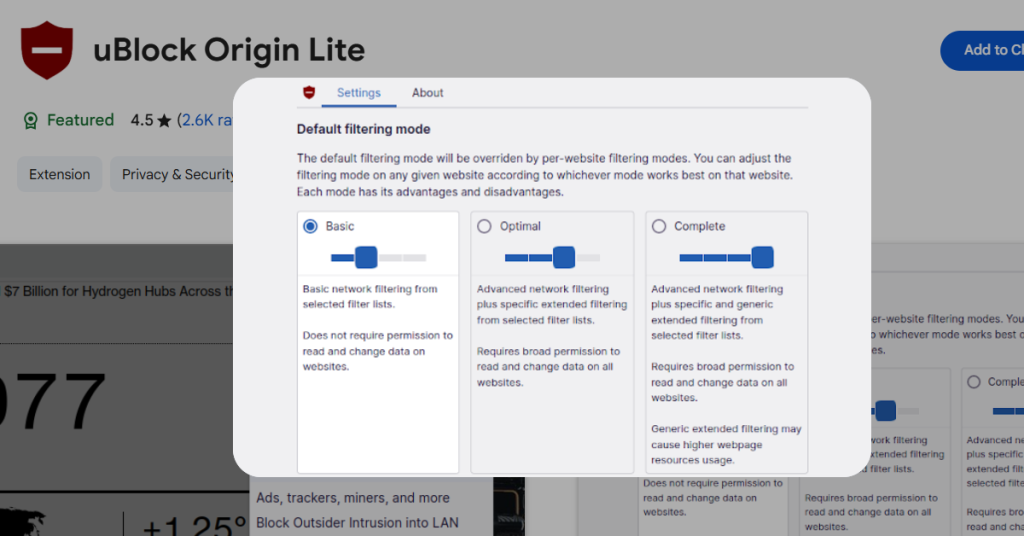
Note that Chrome’s Manifest V3 changes have limited uBlock Origin’s effectiveness on Chromium browsers, but the developer created uBlock Origin Lite specifically for the new standards. For the most powerful ad-blocking experience, Firefox still reigns supreme, but the Lite version works well enough for most needs on Chrome.
8. Dark Reader: Saving My Eyes One Website at a Time
I do most of my work in the evening, and staring at bright white websites for hours gave me headaches and eye strain. Dark Reader solved that problem instantly.
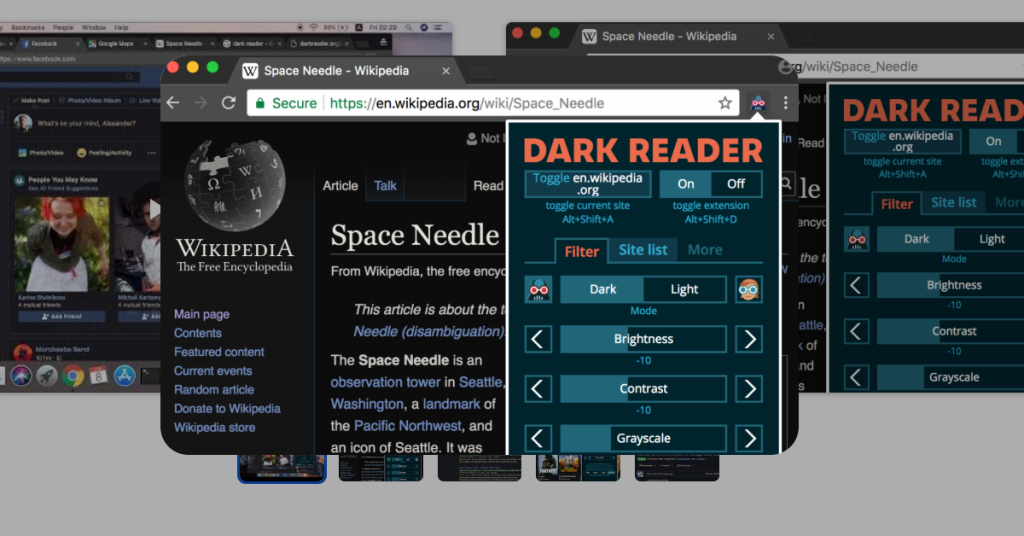
This extension adds a dark theme to every website you visit, transforming those blinding white backgrounds into comfortable dark grays or blacks. You can adjust brightness, contrast, sepia filters, and even customize the color scheme to match your preferences.
What impressed me most is how intelligently Dark Reader handles images and colors. Instead of just inverting everything (which makes photos look terrible), it analyzes each element and applies dark mode thoughtfully. Photos remain natural-looking while backgrounds darken.
You can also create a whitelist of sites that should stay in light mode, which is useful for websites that already have their own dark themes or where color accuracy matters. Since installing Dark Reader two years ago, I haven’t had a single eye-strain headache from late-night browsing.
The Tab Management Tools That Stopped My Browser from Crashing
9. OneTab: The Memory Saver Every Tab Hoarder Needs
I have a confession: I’m a chronic tab hoarder. At my worst, I had 87 tabs open simultaneously, and my laptop was burning up trying to keep them all loaded.
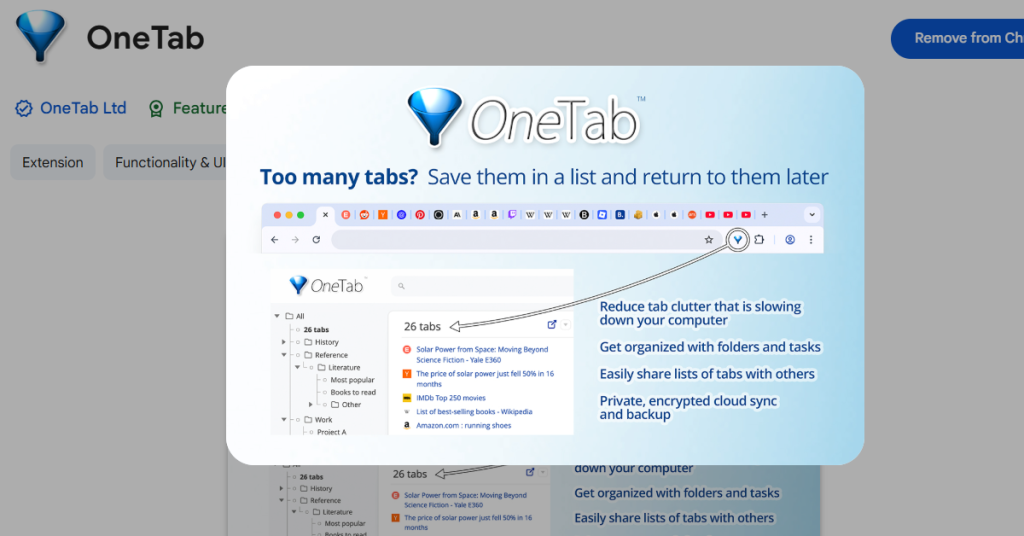
OneTab changed my life. With a single click, it converts all your open tabs into a list, freeing up to 95% of memory. You can restore tabs individually or all at once, and you can even share your tab collections as web pages.
I use OneTab to organize different projects and contexts. When I finish working on a client project, I collapse all those research tabs into a OneTab list I can restore whenever I return to that project. It’s like having unlimited saved workspaces without the memory overhead.
The extension has saved me from countless browser crashes and made multitasking across different projects actually manageable. If you’re the type of person who always has 30+ tabs open, OneTab will change how you work.
10. Tab Wrangler: The Extension That Closes Tabs for You
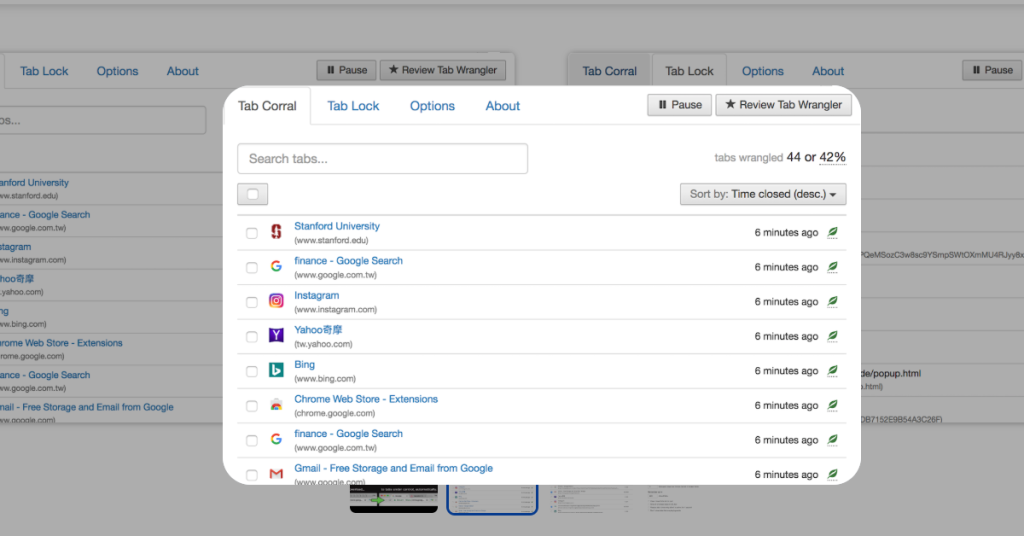
Tab Wrangler takes a different approach to tab management: it automatically closes tabs you haven’t used in a while, then saves them for easy recovery if you need them later.
You can set the auto-close timer to anything from minutes to hours, whitelist specific sites that should never close, and lock important tabs to keep them open permanently. The “corral” feature stores all your closed tabs with their full state, so clicking a link in the corral reopens the exact page you were viewing.
This passive approach to tab management works beautifully. Instead of actively deciding which tabs to close (which I never actually do), Tab Wrangler handles it automatically while giving me an escape hatch if I need something back.
My browser runs faster, I use less RAM, and I’ve broken my habit of leaving dozens of tabs open “just in case.”
11. Session Buddy: The Tab Manager for Power Users
For those times when you need more control than OneTab or Tab Wrangler provide, Session Buddy is your answer.
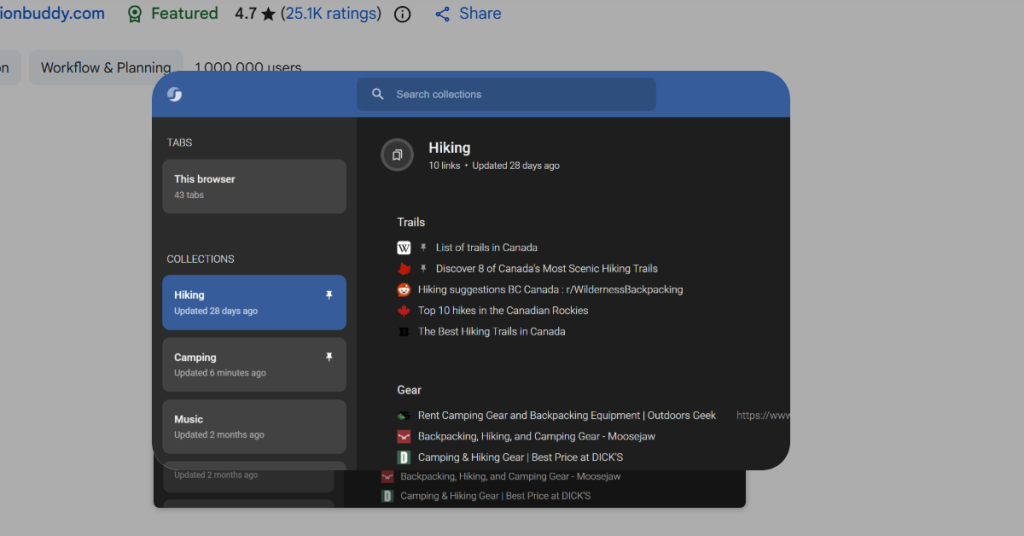
This powerful tab and bookmark manager lets you save entire browsing sessions, search through your tab collections, and recover your tabs after a crash. You can organize sessions with names and tags, restore specific windows or tabs, and even export your session data.
I use Session Buddy for recurring workflows. For example, I have a saved session called “Weekly Content” that opens all the research sources, writing tools, and social media platforms I need for my Monday morning content creation routine. Instead of manually opening 15 tabs, I click “restore all” and get to work immediately.
The search functionality is also brilliant for finding that tab you had open three days ago but can’t remember the name of. Session Buddy has saved me hours of re-searching for resources I’d already found.
The Communication Tools That Make Remote Work Actually Work
12. Loom: The Screen Recorder That Ended Email Marathons
Explaining complex ideas through email is painful. You write three paragraphs trying to describe a bug or walk through a process, and the recipient still doesn’t quite get it.
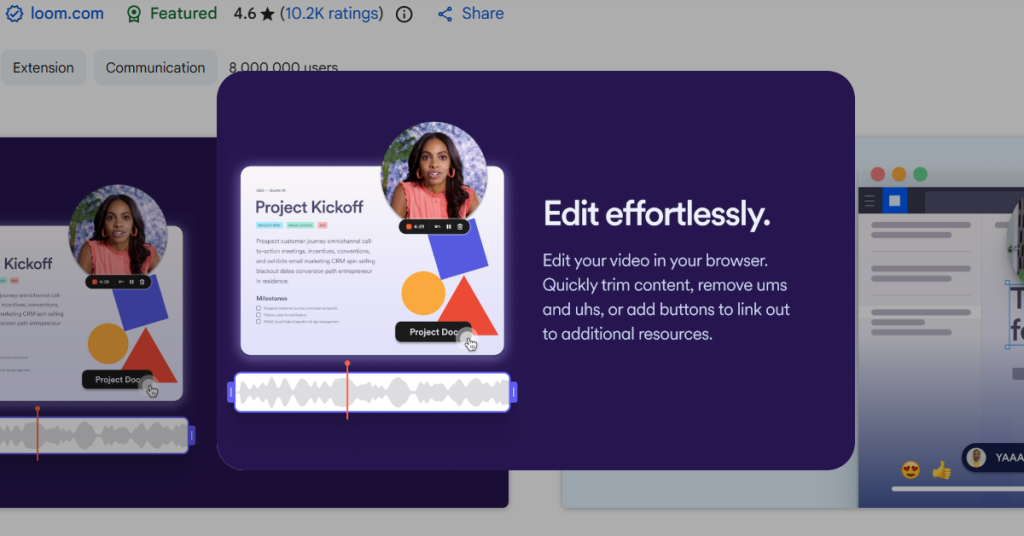
Loom solved this problem for me. With one click, I can record my screen, webcam, or both simultaneously, then instantly share the video via a link. It’s perfect for code reviews, bug reports, design feedback, giving tutorials, or async team communication.
What makes Loom special is the speed. There’s no rendering time, no uploading to YouTube, no fiddling with video files. You click record, explain your point while showing your screen, click stop, and the link is automatically copied to your clipboard. The whole process takes seconds.
I’ve used Loom to train new team members, explain technical concepts to non-technical clients, and provide feedback on design mockups. Every time, it’s faster and clearer than trying to write everything out in text.
The free plan includes up to 25 videos (five minutes each), which is enough for most personal use. I upgraded to the paid plan for unlimited videos and advanced features like custom branding.
13. Zoom Scheduler: Making Video Meetings Less Painful
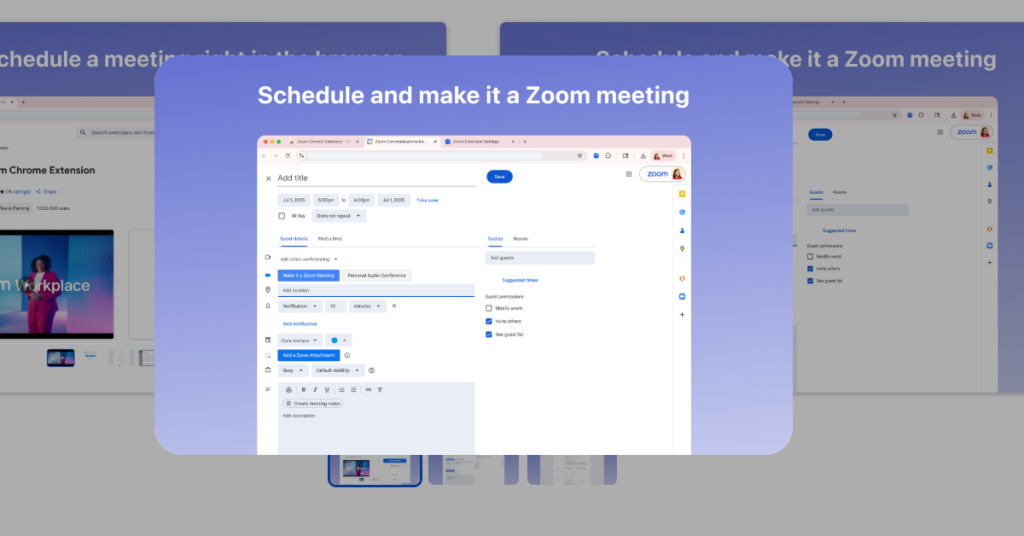
Scheduling video meetings used to require opening Zoom, creating a meeting, copying the link, going back to Google Calendar, creating an event, and pasting the link. The Zoom Scheduler extension automates this entire workflow.
With one click from inside Google Calendar, you can create a new event and make it a Zoom meeting. The join link, meeting ID, and password are automatically added to the calendar invitation. You can even configure default settings like requiring passwords or enabling waiting rooms.
The newest version includes AI Companion features that generate meeting summaries after calls end, which has been incredibly useful for keeping my team aligned on decisions and action items.
If you spend any amount of time on video calls, this extension eliminates so much friction from the scheduling process.
The Shopping Extensions That Have Saved Me Thousands
14. Honey: The Coupon Code Hunter You Always Wished Existed
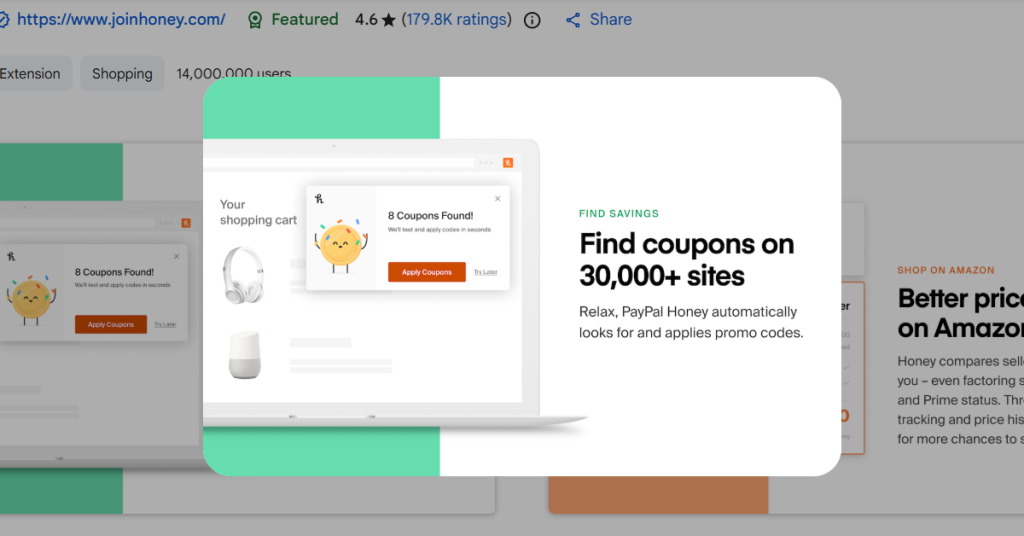
I used to abandon online purchases in frustration after trying five different coupon codes that didn’t work. Honey changed the game entirely.
When you reach a checkout page, Honey automatically tests every available coupon code and applies the one that saves you the most money. The whole process takes about 10 seconds, and I’ve saved hundreds of dollars on purchases I was going to make anyway.
Honey also tracks prices on Amazon and alerts you when items drop to your target price. The Droplist feature has helped me snag deals on everything from electronics to furniture by notifying me the moment prices fell.
The cashback feature is a bonus—you earn Honey Gold on purchases at participating stores, which you can redeem for gift cards. I’ve earned over $200 in Amazon gift cards just from shopping normally.
Best of all, it’s completely free. No subscription, no hidden fees, just automatic savings.
15. Rakuten: Cash Back That Actually Adds Up
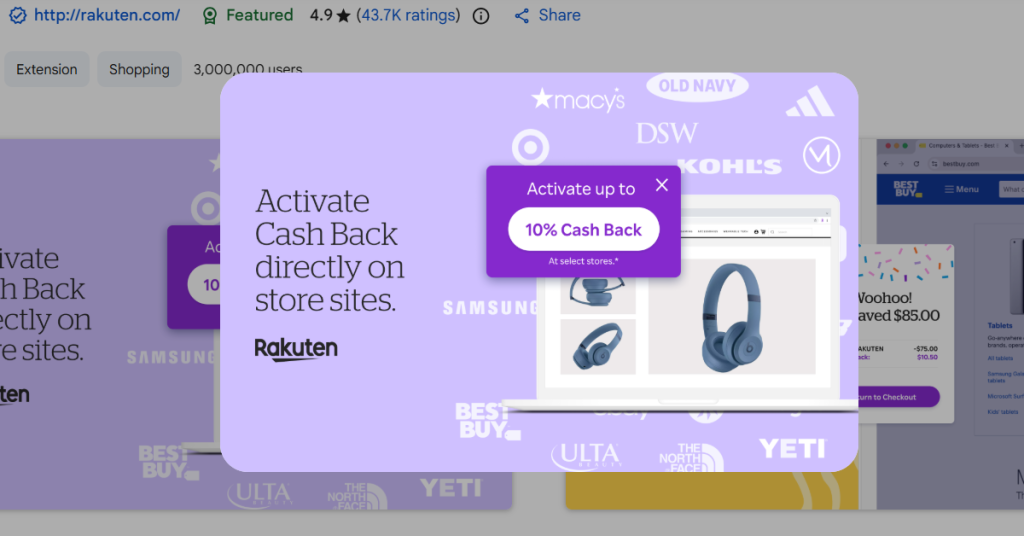
Rakuten (formerly Ebates) gives you cashback when you shop at over 3,500 online stores. The browser extension makes earning cashback effortless—it pops up when you visit participating retailers and activates your cashback with one click.
I’ve earned over $600 in cashback over the past three years just by shopping normally at stores like Target, Macy’s, and Sephora. The cashback percentages vary (typically 1-10%), and they often run special promotions with double or triple cashback.
Every three months, Rakuten sends you a check or PayPal payment with your accumulated cashback. It feels like free money, even though you’re just getting a percentage back on purchases you were making anyway.
The extension also finds and applies coupon codes automatically, similar to Honey, though I find Honey slightly more effective for that specific task.
The Note-Taking Extensions That Capture Everything Worth Remembering
16. Evernote Web Clipper: Saving the Web, One Article at a Time
When I find an article, recipe, or resource I want to save for later, Evernote Web Clipper is my first choice. It saves web pages directly to my Evernote account, stripping away ads and clutter to create clean, readable versions.
You can clip entire articles, simplified versions, screenshots, or just bookmarks. The annotation features let you highlight key passages and add notes before saving. Everything is fully searchable, including text within images, which is incredibly powerful for research.
I use Evernote for long-term knowledge management and research projects. When I’m diving deep into a topic, I’ll clip dozens of articles into a dedicated notebook, tag them appropriately, and have a curated library of resources to reference later.
The integration with the main Evernote app means everything syncs seamlessly across devices, so articles I clip on my desktop are immediately available on my phone and tablet.
17. Raindrop.io: The All-in-One “Digital Vault” for Everything Else
Raindrop.io is what happens when a bookmark manager grows up and gets a design degree. While tools like Evernote are for deep notes, Raindrop is designed for the high-speed “capture” of the web.
With one click of the extension, you can save more than just articles. It handles videos, PDFs, and even specific images or tweets. Instead of a boring list of blue links, it turns your saves into a beautiful, visual board—almost like a private Pinterest that actually functions as a productivity tool.
I use Raindrop as my “landing strip” for research. If I’m planning a trip, looking for design inspiration, or just found a long-form essay I want to read over the weekend, it goes into a specific Raindrop collection. The extension even has a “mini-app” view, so I can find my saved links and drag them into whatever I’m working on without ever leaving the tab I’m currently in.
The Pro version is where it becomes a true “forever” tool. It automatically creates permanent copies of every page you save. So, even if the original website goes offline or the article gets deleted, your copy stays in your vault forever—searchable, tagged, and ready when you are.
The Focus Extensions That Help Me Actually Get Work Done
18. Forest: The App That Grows Trees While You Work
Forest takes a uniquely gamified approach to focus and time management. You plant a virtual tree and set a timer (typically 25 minutes using the Pomodoro technique). If you stay focused and don’t visit blocked websites, your tree grows. If you give in to distraction, your tree dies.
This simple mechanic is surprisingly motivating. Over time, you build a forest of successfully completed focus sessions, which provides a visual record of your productivity. You can customize which websites are blocked during focus sessions and even share your forest with friends for gentle accountability.
The best part? Forest partners with Trees for the Future, and you can spend your earned virtual coins to plant real trees. I’ve planted 47 real trees just by staying focused at work, which feels amazing.
If you struggle with social media distractions or mindless web browsing during work hours, Forest’s gentle gamification approach is far more effective than willpower alone.
19. StayFocusd: The Nuclear Option for Website Blocking
When I need to buckle down and eliminate all distractions, StayFocusd is my weapon of choice. It restricts the amount of time you can spend on time-wasting websites each day.
You configure which sites are problematic (for me, it’s Twitter, Reddit, and YouTube), set a daily time limit, and once you’ve used up your allotted time, those sites are completely blocked for the rest of the day. The blocking is aggressive—you can’t easily disable it, which is the whole point.
The “Nuclear Option” takes this even further: it blocks access to specific sites for hours or days at a time, and once activated, it cannot be canceled. This might sound extreme, but when you’re facing a critical deadline, it’s exactly what you need.
StayFocusd also provides usage statistics showing exactly how much time you waste on different websites, which can be a sobering wake-up call.
The Developer Tools That Every Web Professional Needs
20. ColorZilla: The Color Picker That Actually Works
Whether you’re a designer, developer, or just someone who wants to use specific colors consistently, ColorZilla is essential. It’s an advanced eyedropper and color picker that lets you identify the exact color of any element on any web page.
You can click anywhere on a page to grab the color, view color history, generate CSS gradients, and analyze entire page palettes. The color values are displayed in hex, RGB, and HSV formats and can be instantly copied to your clipboard.
I use ColorZilla constantly for design work and when building websites. Instead of guessing at colors or taking screenshots and analyzing them in Photoshop, I can grab the exact color value in seconds directly from the browser.
The palette analyzer is particularly brilliant—it scans entire websites and shows you all the colors being used, which is perfect for creating brand style guides or ensuring color consistency across projects.
21. Wappalyzer: Discovering the Tech Stack of Any Website
Ever wondered what technologies a website uses? Wappalyzer tells you instantly.
This technology profiler detects content management systems, frameworks, JavaScript libraries, analytics tools, marketing platforms, payment processors, and over 1,000 other technologies. When you visit any website, Wappalyzer displays icons showing the tech stack in your toolbar.
I use this constantly for competitive research and learning. When I see a website with a feature I like, Wappalyzer helps me understand how it was built so I can implement something similar. It’s also useful for evaluating potential clients’ websites and understanding what technologies they’re currently using.
For developers, it’s an educational tool. Every website becomes a learning opportunity to see how professionals solve problems and what tools they choose.
22. JSON Formatter: Making Data Actually Readable
If you work with APIs or view JSON data regularly, you know how painful it is to read raw JSON in the browser. JSON Formatter automatically detects JSON responses and formats them beautifully with syntax highlighting, collapsible sections, and proper indentation.
What used to be an incomprehensible wall of text becomes a structured, navigable tree. You can collapse and expand sections, copy specific values, and actually understand what the data structure contains.
The extension is lightweight, fast even with massive JSON files, and includes a dark mode for late-night debugging sessions. For developers, it’s absolutely essential—one of those tools you don’t realize you desperately needed until you try working without it.
The Screenshot and Documentation Tools That Save Hours of Explanation
23. GoFullPage: The Only Way to Capture the “Big Picture”
GoFullPage is the digital equivalent of a high-speed panoramic camera for your browser. While most screenshot tools only grab what’s visible on your screen, GoFullPage handles the “infinite scroll” of the modern web without breaking a sweat.
The beauty of this extension is its simplicity. There’s no bloat and no unnecessary permissions. You click the icon (or hit Alt+Shift+P), and you watch a tiny Pac-Man-like animation as it scrolls through the page, stitching everything together into one seamless, high-resolution image. It handles complex layouts and sticky headers—the things that usually break other screenshot tools—perfectly.
I use GoFullPage for everything from archiving long-form research to sending “before and after” feedback on website designs. Instead of sending a client five different overlapping screenshots and hoping they can piece them together, I send one clean PDF or PNG that shows the entire journey from header to footer.
While the core capturing is free and unlimited, I’ve kept the Premium version for its advanced editor. It lets you crop, add annotations, and—most importantly—blur out sensitive information before you download the file. It’s a specialized tool that has saved me more “manual stitching” time than I can count.
24. Scribe: The Tutorial Creator That Writes Itself
Scribe is genuinely magical. It automatically creates step-by-step tutorials by recording your clicks as you complete a process.
Here’s how it works: you click “Start Recording,” perform whatever task you want to document (like setting up a tool, completing a workflow, or navigating software), then click “Stop.” Scribe automatically generates a professional tutorial with screenshots, numbered steps, and descriptions.
I’ve used Scribe to create onboarding documentation for new team members, write help articles for customers, and document internal processes. What used to take an hour of screenshots and writing now takes five minutes.
The generated guides are shareable via link, can be embedded in knowledge bases, exported as PDFs, and customized with your branding. For anyone who creates documentation regularly, Scribe is an absolute game-changer.
The Content Discovery and Research Tools That Find the Good Stuff
25. SEO META in 1 CLICK: The “X-Ray Vision” for Every Website
If you’ve ever wondered why a certain article ranks #1 on Google while yours is buried on page five, this is the extension that gives you the answer. SEO META in 1 CLICK is essentially a mini-audit tool that summarizes the entire technical structure of a page in a single window.
Instead of right-clicking and “viewing page source” (which feels like trying to read The Matrix), you just click the icon. Instantly, you see the title tag, meta description, and—my favorite part—the exact hierarchy of H1 to H6 headers. It tells you if images are missing Alt text, if links are broken, and even how the page will look when shared on social media.
I use this daily as a “sanity check.” Before I hit publish on a new post, I click it to make sure I didn’t accidentally leave a placeholder title or forget a meta description. I also use it to “spy” on my favorite creators—it’s fascinating to see exactly which keywords they are targeting and how they’ve structured their content to please the search engine gods.
It’s one of the few tools that hasn’t changed its interface in years, and I hope it never does. It’s fast, lightweight, and does exactly what it says on the tin. If you care about how your work is discovered online, this is a non-negotiable part of your toolbar.
26. SimilarWeb: The Traffic Spy for Every Website
SimilarWeb provides instant traffic analytics for any website you visit. With one click, you can see monthly visits, bounce rate, average visit duration, traffic sources, top countries, and competing websites.
I use this constantly for competitive research and market analysis. When evaluating competitors or potential partnership opportunities, SimilarWeb gives me immediate insights into their web presence and audience without having to dig through multiple analytics platforms.
The extension is particularly useful for publishers and marketers trying to understand industry benchmarks and identify trending websites in their niche. The data isn’t always perfectly accurate (it’s estimated based on various signals), but it’s close enough to be incredibly useful for research and decision-making.
The Quality-of-Life Extensions I Use Every Single Day
27. The Great Suspender: Keeping My Browser from Melting
Even with OneTab and Tab Wrangler, I still end up with too many tabs open sometimes. The Great Suspender (and its successors like The Marvelous Suspender) automatically suspends inactive tabs after a period of time, freeing up memory and CPU resources.
Suspended tabs remain visible but stop using system resources until you click on them again. This means you can keep reference tabs open without them dragging down your computer’s performance.
I have The Great Suspender set to automatically suspend tabs after 30 minutes of inactivity, with a whitelist of sites (like Gmail and Slack) that should never suspend. This keeps my browser responsive even when I have 40+ tabs open across different projects.
28. LastPass or 1Password: The Premium Password Alternative
While I personally use Bitwarden, I’d be remiss not to mention LastPass and 1Password, which many professionals prefer for their additional features and polished interfaces.
LastPass offers family plans, emergency access features, and advanced sharing capabilities that make it ideal for families or teams who need to share passwords securely. 1Password has the most elegant user interface of any password manager and exceptional customer support.
Both are paid services (unlike Bitwarden’s generous free tier), but the polish and additional features are worth the cost for many users. The key point is: use a password manager—any password manager—rather than reusing passwords or keeping them in a text file.
29. Extensity: Managing All These Extensions
With 30 extensions, you might worry about browser bloat. Extensity solves that problem by letting you quickly enable and disable extensions with a single click.
I keep most extensions enabled all the time, but some resource-intensive ones (like Grammarly or certain developer tools) I only enable when I need them. Extensity makes toggling extensions on and off far faster than digging through Chrome’s settings.
You can also create profiles that enable specific sets of extensions together, which is useful if you have different extension needs for work versus personal browsing.
30. Google Calendar Integration: The Glue for Everything
While not a standalone extension, Google Calendar integrates with many of the extensions I’ve mentioned (Todoist, Zoom, Clockify, etc.) and deserves recognition as the central hub that ties my digital workflow together.
When extensions integrate with Google Calendar, suddenly your entire schedule, tasks, meetings, and time tracking are visible in one place. This unified view is incredibly powerful for staying organized and ensuring nothing falls through the cracks.
Many productivity extensions offer Google Calendar integration, and it’s usually one of the first features I enable when setting up a new tool.
To keep your list consistent and up-to-date for 2026, here is the entry for ChatGPT to PDF by PDFCrowd.
This extension is a lifesaver for anyone who uses AI for deep research, coding, or long-form brainstorming and doesn’t want their best ideas lost in the “sidebar abyss” of ChatGPT history.
31. ChatGPT to PDF by PDFCrowd: The Ultimate Paper Trail for AI
We’ve all had that one legendary ChatGPT session—the one where the AI finally understands exactly what you’re trying to build, or helps you outline an entire book. But relying on OpenAI’s history sidebar to keep those ideas safe is a risky game. Conversations get buried, and let’s be honest, the “Share Link” feature is great until the link expires or the formatting breaks.
ChatGPT to PDF by PDFCrowd is my solution for “hard-copying” my digital brain. It adds a clean, unobtrusive button directly to the ChatGPT interface. One click, and your entire conversation is converted into a professionally formatted PDF that looks exactly like the chat—code blocks, tables, and bold text included.
I use this as a “final step” for every major project. Once I’ve finished a research deep-dive or a complex coding session, I export it as a PDF and drop it into my project folder (or Raindrop.io, as mentioned earlier). It turns a fleeting AI chat into a permanent, searchable document that I can read offline or send to a client without them needing to log in anywhere.
The best part? It allows you to customize the output—you can tweak the font size, margins, and even exclude your own prompts if you just want the AI’s answers. It’s the simplest way to make sure your best AI-assisted work actually survives the test of time.
32. AI Chat to PDF: The “Gemini-Friendly” Archiver
While PDFCrowd is my go-to for ChatGPT, AI Chat to PDF is the tool I use when I’m working inside Google Gemini. If you’re like me, you probably bounce between AI models depending on the task—ChatGPT for coding, but Gemini for anything that requires pulling data from Google Docs or real-time Search.
The problem? Gemini’s native “Export to Docs” is fine, but it often messes up the formatting of code snippets or long lists, and it doesn’t always capture the back-and-forth “vibe” of the conversation.
This extension treats your Gemini chats like a first-class citizen. It sits right in the browser and, with one click, creates a perfectly preserved PDF of your Gemini research. It captures the links, the bolded headers, and those crucial “Sources” that Gemini cites at the bottom of its answers—which are usually the first things to get lost if you just copy-paste the text into a Word doc.
I keep this installed alongside the ChatGPT version because it’s all about redundancy. In 2026, our digital brains are spread across three or four different AI platforms. This extension ensures that no matter where the “lightbulb moment” happens—whether I’m chatting with Gemini on my lunch break or doing a deep dive at my desk—I have a high-quality, offline copy of that knowledge before it disappears into a cloud history I’ll never look at again.
Making It All Work Together
The real magic happens when these extensions work together synergistically. For example:
- Momentum shows my daily focus from Todoist
- Clockify tracks time spent on tasks from my Todoist list
- Loom recordings get saved as Todoist tasks for later review
- Articles saved with Pocket are tagged and referenced in Evernote for long-term research
- Zoom meetings scheduled through the extension automatically appear in Google Calendar with Clockify time tracking
This integrated ecosystem has transformed how I work. My browser has become a powerful productivity platform rather than just a window to the internet.
A Word of Caution About Extension Overload
I’ve tested hundreds of extensions to arrive at this list of 30. That might sound like a lot, but I’ve deliberately kept the number manageable and avoided redundant functionality.
Too many extensions can slow down your browser, create privacy concerns, and add unnecessary complexity. My advice: start with three to five extensions that solve your biggest pain points, use them for a month, then gradually add more if needed.
Also, be mindful of permissions. Extensions that request access to “all websites” or “all your data” should be evaluated carefully. Stick with extensions from reputable developers with good privacy policies.
How These Extensions Have Changed My Work Life
Looking back at how I worked before discovering these tools, I’m amazed at how much time I wasted and how disorganized I was.
These extensions have:
- Saved me an estimated 10-15 hours per week through automation and better organization
- Protected my online accounts with strong, unique passwords
- Eliminated eye strain from hours of late-night work
- Saved me over $2,000 on online purchases through automatic coupon codes and cashback
- Made remote collaboration actually pleasant through better screen recording and communication tools
- Transformed my browser from a source of distraction into a focused productivity environment
Perhaps most importantly, they’ve reduced my digital stress. I used to constantly worry about forgotten tasks, lost articles, whether I was being tracked, or if my passwords were secure. Now those concerns are handled automatically by tools I trust.
Getting Started: Your First Five Extensions
If you’re new to browser extensions or feeling overwhelmed by this list, here are the five I’d recommend installing first:
- Bitwarden – Secure your digital life immediately
- uBlock Origin – Make the web faster and safer
- Todoist – Stop forgetting important tasks
- Grammarly – Communicate more clearly
- OneTab – Tame your tab chaos
These five cover the essential bases: security, privacy, productivity, communication, and organization. Once you’ve used these for a few weeks and experienced the benefits, you’ll naturally discover which additional tools would help your specific workflow.
The Extensions I Almost Included (And Why I Didn’t)
This list was hard to narrow down to 30. Here are some extensions I use occasionally but didn’t quite make the cut:
- LanguageTool – Similar to Grammarly but supports more languages
- Mercury Reader – Creates clean, distraction-free reading views (now discontinued, but saved in my heart)
- Pushbullet – Bridges your computer and phone for notifications and file sharing
- Tab Resize – Splits browser windows into different layouts
- Video Speed Controller – Adjusts playback speed on any video
- Wikiwand – Makes Wikipedia look beautiful
These are all excellent extensions worth exploring if you have specific needs they address.
FAQ
Won’t 32 extensions slow down my browser?
Modern Chrome is quite good at managing extension overhead, especially for lightweight extensions. That said, I don’t have all 30 running simultaneously—I use Extensity to disable resource-intensive extensions when I’m not actively using them. Extensions like uBlock Origin actually speed up your browser by blocking ads and trackers.
Are Chrome extensions safe?
Extensions from reputable developers in the Chrome Web Store are generally safe, but you should always check permissions before installing. Be wary of extensions requesting access to “all websites” or “all your data” unless there’s a clear reason they need it. Stick with well-reviewed extensions from known developers.
Do these extensions work on other Chromium browsers like Edge, Brave, or Opera?
Yes! Most Chrome extensions work perfectly on Edge, Brave, Opera, Vivaldi, and other Chromium-based browsers. Some extensions are also available for Firefox, though you’ll need to install the Firefox version from their add-ons store.
Can I use these extensions on my phone?
Browser extensions don’t work on Chrome for Android or iOS. However, many of these tools (Todoist, Bitwarden, Pocket, Evernote, etc.) have excellent mobile apps that sync with the browser extensions, giving you a seamless cross-device experience.
How much do all these extensions cost?
Many of these extensions are completely free (Bitwarden, uBlock Origin, Dark Reader, OneTab, Google Keep, ColorZilla, Wappalyzer, JSON Formatter, and many others). Some offer freemium models with paid upgrades (Grammarly, Momentum, Todoist, Evernote, Loom). Only a few require payment (though free alternatives exist for most).
What if an extension gets discontinued or becomes malicious?
This has happened occasionally. The key is staying alert to permission changes and checking if extensions request new permissions during updates. Having alternatives in mind helps too. For example, when Honey was acquired by PayPal, some users switched to Rakuten. The Chrome Web Store usually removes malicious extensions quickly once reported.
How often should I update my extensions?
Chrome updates extensions automatically by default, which is generally fine. However, you should occasionally review your installed extensions, remove ones you no longer use, and check if permission requirements have changed during updates.
Can extensions track my browsing data?
Some can, which is why you should carefully review permissions before installing. Extensions like uBlock Origin, Bitwarden, and Todoist are open-source and have been audited by security researchers. For closed-source extensions, read the privacy policy and stick with reputable developers.
What’s the difference between an extension and an app in Chrome?
Chrome apps (like Google Keep or Gmail) open in their own windows and work more like standalone applications. Extensions enhance your browsing experience within Chrome itself. Google has been phasing out Chrome apps, moving toward Progressive Web Apps (PWAs) instead.
How do I troubleshoot conflicts between extensions?
If Chrome starts acting strange, try disabling extensions one at a time to identify the culprit. Common conflicts occur between multiple ad blockers or multiple tab managers. Use Extensity to quickly test different combinations of enabled extensions.
Are there privacy-focused alternatives to these extensions?
Absolutely. If privacy is your top concern, stick with open-source extensions like Bitwarden, uBlock Origin, and Privacy Badger. Avoid extensions that require creating accounts or that monetize through data collection. Firefox also has better privacy protections than Chrome if you’re willing to switch browsers.
Can I sync my extensions across different computers?
If you’re signed into Chrome with your Google account, Chrome will sync your installed extensions across devices automatically. However, extension settings and data may not always sync—you might need to configure each extension separately on each device.
The Future of Browser Extensions
Browser extensions continue to evolve. We’re seeing trends toward:
- AI integration – Extensions like Grammarly are adding AI writing features, and new AI-powered extensions for summarizing articles, generating content, and automating tasks are emerging constantly
- Better privacy controls – In response to user concerns, extension developers are providing more granular permission controls and clearer privacy policies
- Cross-browser compatibility – With standards like WebExtensions, extensions increasingly work across Chrome, Firefox, Edge, and other browsers with minimal changes
- Progressive Web Apps – As PWAs mature, some functionality currently provided by extensions may move into web apps themselves
- Manifest V3 compliance – Google’s Manifest V3 standard has forced ad blockers and other powerful extensions to adapt, sometimes losing functionality in the process
The key is staying flexible and being willing to adapt as the extension ecosystem evolves.
Your Turn: Building Your Perfect Extension Stack
These 30 extensions have transformed how I work, but your needs might be different. The key is identifying your biggest productivity pain points and finding tools that address them specifically.
Start small, experiment, and build your extension stack gradually. Pay attention to which tools you actually use versus which you thought would be helpful but sit idle. Ruthlessly remove extensions that don’t earn their keep.
Most importantly, remember that tools are only valuable if they serve you. An extension that creates more complexity than it solves isn’t worth keeping, no matter how highly recommended it is.
The goal isn’t to have the most extensions—it’s to have exactly the right ones that make your work flow smoothly and let you focus on what matters.
What extensions have become indispensable in your workflow? I’m always curious to discover new tools that might make my list obsolete. The beauty of the extension ecosystem is that innovation never stops, and there’s always something new to explore.
Until then, these 30 extensions aren’t going anywhere. They’ve earned their permanent spots through years of daily use, and I genuinely can’t imagine working without them anymore.