
The Ultimate Guide to AI Tools for Google Sheets: Stop Drowning in Data (2026 Edition)
Table of Contents
I remember the exact moment I realized I was wasting my life in a spreadsheet.
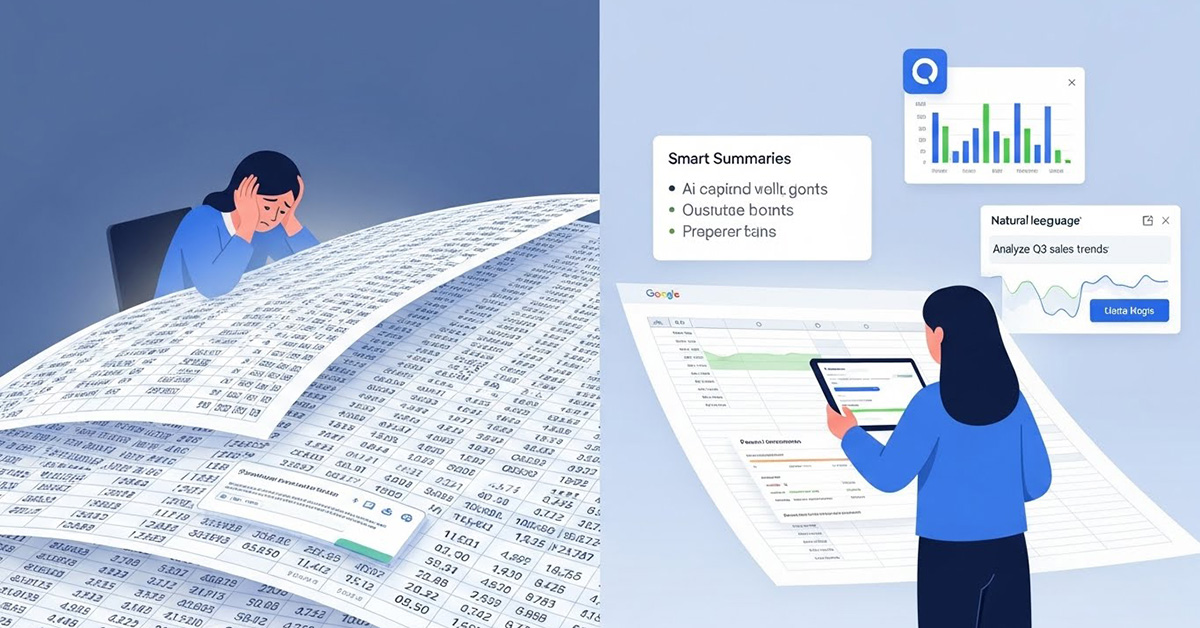
It was a Tuesday night, long after everyone else had left the office. I was staring at a dataset of 5,000 customer feedback entries. My job? Categorize them by sentiment and product issue. Manually. Row by agonizing row. I felt like a human typewriter, mindlessly copying, pasting, and tagging until my eyes blurred.
If you work in marketing, operations, or data analysis, you know this pain intimately. But here is the good news: that era of spreadsheet drudgery is officially over.
We are witnessing a quantum leap in productivity. We aren’t just talking about simple macros anymore; we are talking about AI tools for Google Sheets that can clean messy data, write complex formulas, and analyze sentiment in seconds. In 2026, using a spreadsheet without AI is like trying to start a fire with two sticks when you have a flamethrower sitting next to you.
In this guide, I will walk you through exactly how to revolutionize your workflow using the best AI integrations available today by showing how to use AI in Google Sheets.
The New Standard: Google’s Native Gemini Integration
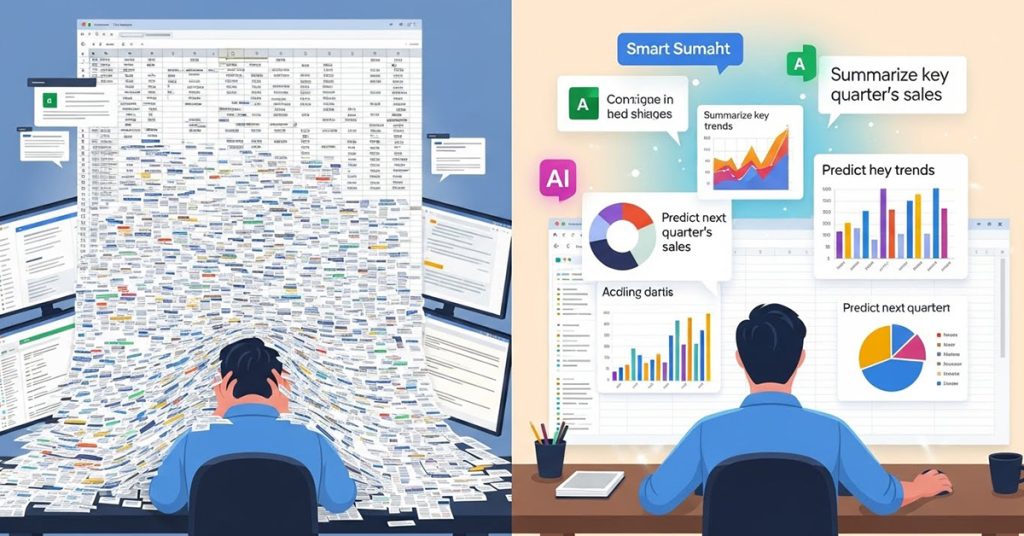
If you haven’t looked at the sidebar in Google Sheets recently, you are missing out. Google has aggressively integrated Gemini (formerly Bard) directly into the Workspace ecosystem, and for many users, this is the first place you should start.
The Power of the Side Panel
The Gemini sidebar isn’t just a chatbot; it’s a co-pilot that understands your grid. According to recent guides on Gemini for Workspace, you can now use natural language to manipulate your data without writing a single line of code.
For example, if you have a sales tracker open, you can simply open the side panel and type: “Create a column chart showing the budget for each campaign name.” Gemini generates the chart, and you can insert it directly into your sheet. It’s perfect for exploratory analysis when you need to visualize trends instantly.
The Formula Whisperer
We have all been there—staring at a #REF! or #VALUE! error, having no idea what went wrong.
As of late 2025, Gemini has evolved into what tech journalists are calling a “formula whisperer.” It doesn’t just give you the formula; it explains why your current one failed. In one publicized test case involving a complex wedding planning spreadsheet, Gemini was able to diagnose errors in distance calculations and suggest the Haversine formula to fix it. It turns debugging from a frustration into a learning opportunity.
Smart Fill and Enhanced Automation
For the repetitive stuff, Google’s Smart Fill has become incredibly intuitive. If you have a column of messy names like “john smith” and “SMITH, Jane,” and you manually correct the first two to “John Smith” and “Jane Smith,” the AI recognizes the pattern and offers to auto-fill the remaining thousands of rows.
For Enterprise users, Enhanced Smart Fill goes a step further. It can actually look at the context of the data. You can mark three reviews as “Positive,” “Negative,” or “Neutral,” and the AI will grasp the sentiment patterns to classify the rest of your dataset automatically.
Top Third-Party AI Tools For Google Sheets to Supercharge It
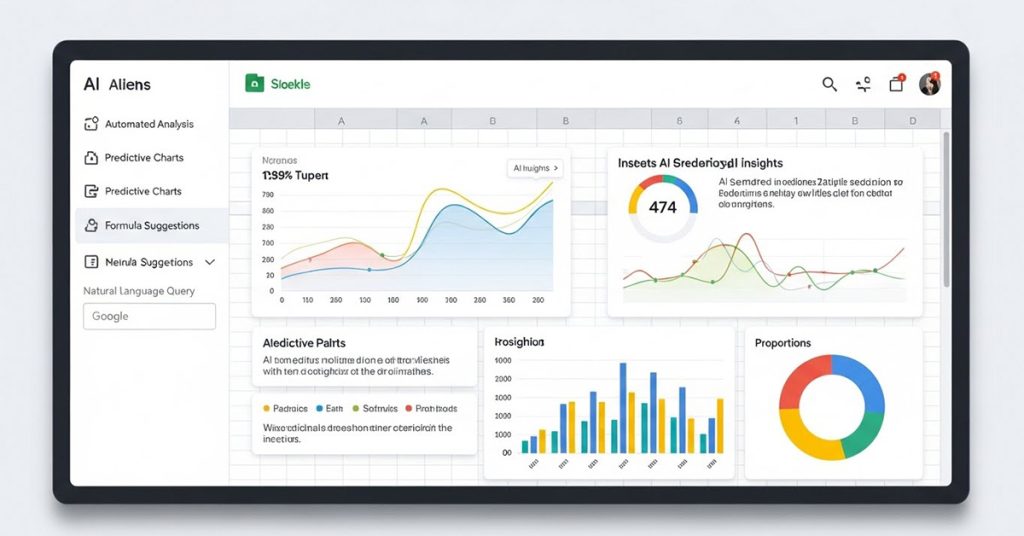
While Google’s native tools are powerful, the third-party ecosystem offers specialized features that can take your productivity to the next level. Based on extensive testing and user feedback, here are the heavy hitters you need to know about.
1. Excelmatic
If you want a comprehensive solution that feels like it gives you superpowers, Excelmatic is often cited as a top contender. It bridges the gap between raw data and business intelligence.
- Best For: Users who want to ask plain English questions and get complex answers.
- The Hook: Instead of learning complex query languages, you simply ask questions about your data. Users have reported saving over 10 hours weekly on manual tasks. It handles everything from smart data processing to automated visualization in one click.
2. Coefficient
- Best For: Teams needing real-time data synchronization.
- The Hook: It connects your spreadsheet to your CRM and other business platforms, ensuring your data is never stale. It automates report generation so you aren’t copy-pasting numbers every Monday morning.
3. Bricks & GPT for Sheets
- Best For: Visual storytelling and text-heavy analysis.
- The Hook: Bricks specializes in turning dry data into compelling visual reports and dashboards. Meanwhile, add-ons like “GPT for Sheets” bring the power of OpenAI’s models directly into your cells. You can write prompts like
=GPT("Summarize this review", A2)to process text in bulk.
You might want to read this: The Ultimate Guide to Large Language Models (LLMs)
Actionable Use Cases: How to Actually Use This Stuff

Let’s move from theory to practice. How do you actually apply these tools to your Monday morning workload? Here are three specific scenarios drawn from expert workflows.
Scenario A: The “Messy Data” Cleanup
The Problem: You have a spreadsheet where everything is combined into single cells (e.g., “John Doe, 34, Enrollment #12345”).
The AI Solution: Instead of fighting with “Text to Columns” or complex regex formulas, you can use a function like Gemini Extract.
- Type a command like
=GEMINI_EXTRACT(A2, "Name"). - The AI pulls just “John Doe” into the new cell.
- Repeat for Age and Enrollment Number. Boom—your table is clean, structured, and ready for analysis in seconds.
Scenario B: Sentiment Analysis at Scale
The Problem: You have 2,000 product reviews and need to know if customers are happy, but you don’t have time to read them all.
The AI Solution: Using a tool like Bricks or the =AI() function available in some integrations:
- Set up a prompt in a new column:
=AI("Classify this review as Positive, Negative, or Neutral", B2). - Drag the formula down.
- Pro Tip: Once categorized, create a quick Pivot Table to see the percentage breakdown. You just turned qualitative rambling into quantitative data.
Scenario C: The “Blank Page” Writer’s Block
The Problem: You need to write 50 unique Facebook ad copy variations based on product features listed in your sheet.
The AI Solution: Don’t write them from scratch. Use the sheet as your prompt engine.
- Input: Column A has the Product Name, Column B has the Feature.
- Formula:
=AI("Write a catchy 100-character ad for " & A2 & " highlighting " & B2, C2). - Result: 50 unique drafts generated instantly that you just need to polish.
Advanced Tactics: Prompt Engineering in Spreadsheets
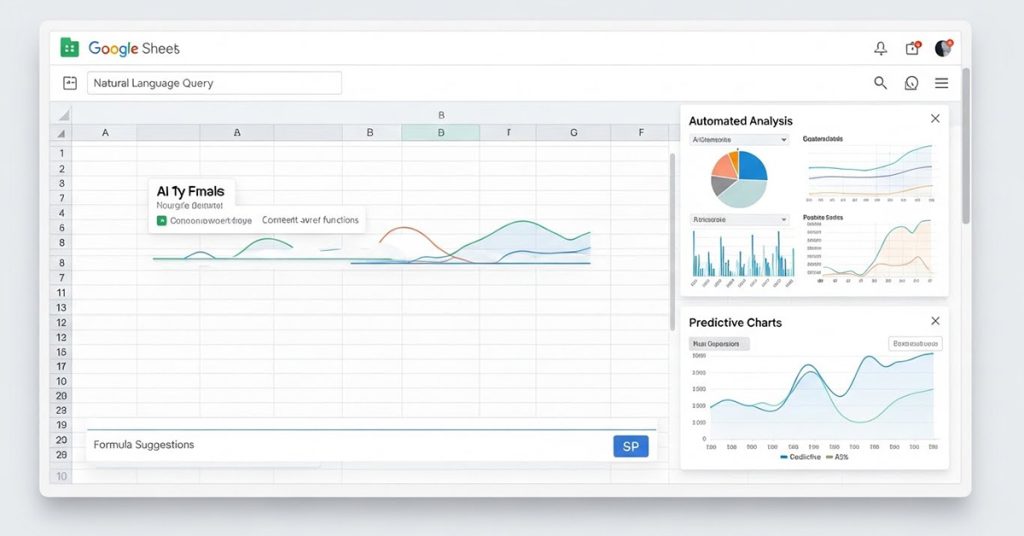
Here is a secret that distinguishes the power users from the amateurs: Prompt Engineering.
Just because you are in a spreadsheet doesn’t mean the rules of chatting with AI disappear. In fact, they are more important because you are automating the output. According to Google’s own prompting guides, you need to structure your requests using four pillars:
- Persona: Tell the AI who it is (e.g., “You are a Senior Product Manager”).
- Task: Be specific (e.g., “Categorize this feedback”).
- Context: Give it background (e.g., “These are reviews for a new luxury skincare line”).
- Format: Define the output (e.g., “Limit to one word: Positive, Negative, or Neutral”).
Try this “Power Prompt”: Instead of asking “Check this data,” try: “I am a Sales Director. Analyze the sales data in columns A through F. Identify the top three trends for Q4 and suggest two strategic actions to improve revenue. Format the output as a bulleted list.”
The Technical Edge: Apps Script and APIs
For those of you who aren’t afraid of a little code, you can bypass paid add-ons by using Google Apps Script to connect directly to models like GPT-5-mini.
By setting up a simple script that calls the OpenAI API, you can create your own custom functions (like =GPT_OUTPUT). This allows for massive bulk processing—like summarizing thousands of articles or translating content—at a fraction of the cost of some enterprise tools. The key here is using “batching” in your script to ensure you don’t hit rate limits or slow down your sheet.
A Word of Warning: The “Hallucination” Trap
I have to keep it real with you: AI is not magic, and it is not perfect.
In one documented case, a user tried to use Gemini to calculate guest travel distances for a wedding. The AI confidently provided a formula using the radius of the Earth… but it errored out because of cell referencing issues.
The Golden Rule: AI is an assistant, not an auditor.
- Verify Calculations: If you ask AI to write a complex math formula, double-check the logic.
- Spot Check Text: If you are auto-generating emails or replies, read a random sample of 10% to ensure the tone is right.
- Data Privacy: Be mindful of what you upload. Enterprise versions of these tools usually have data protection, but be careful with personal API keys and free extensions.
FAQ
Can I use these AI features in Google Sheets offline?
Generally, no. Most AI functions (like =AI() or Gemini features) require an active internet connection because the heavy lifting is done on cloud servers, not your local machine. Standard formulas like SUM or VLOOKUP will still work, but the AI brain needs the web.
Is there a free way to get AI in Google Sheets?
Yes and no. Google provides some basic Smart Fill features for free. However, the advanced Gemini sidebar usually requires a Google One AI Premium or Workspace add-on subscription. Many third-party tools offer free trials or limited free tiers, but for heavy bulk usage, you will likely need a paid plan or your own API key.
Will using AI slow down my spreadsheet?
It can. If you have 10,000 rows and every single row is calling an external AI API (like =GPT(...)), your sheet might lag as it waits for thousands of server responses. Best Practice: Once the AI generates the text you need, copy the column and “Paste as Values” to make the text static and speed up your sheet.
Can AI really clean messy data better than I can?
For pattern-based cleaning (like extracting emails, formatting phone numbers, or splitting names), AI is significantly faster and often more accurate than writing complex Regex formulas. However, if your data is wildly inconsistent (no pattern at all), even AI might struggle.
How do I stop the AI from giving me long, chatty answers in my cells?
It’s all in the prompt! Explicitly tell the AI constraints. Use phrases like “Return only the category name,” “Do not add punctuation,” or “Limit to 5 words.” Treat it like a strict form field.
The future of data isn’t about working harder; it’s about working smarter. By integrating these tools into your workflow today, you aren’t just saving time—you are freeing your brain to focus on the insights that actually matter. So go ahead, open that messy spreadsheet, and let the AI do the heavy lifting.